
Signing in
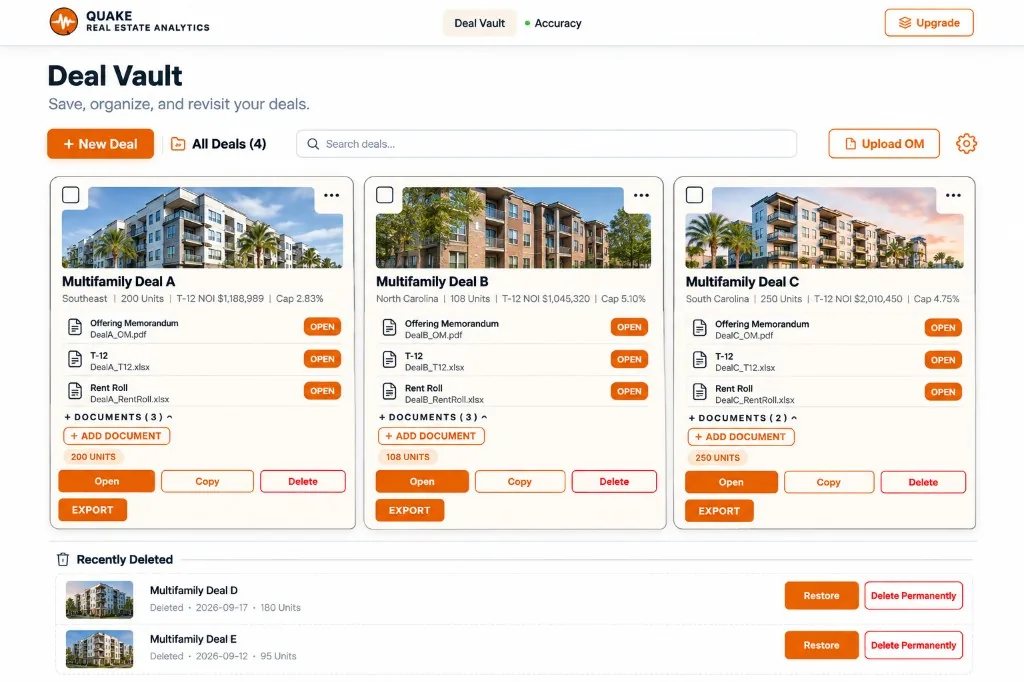
The Deal Vault is the home screen after you enter QUAKE. Cloud Sync sits with the vault. Until you sign in, the status pill reads LOCAL. The deal is on this browser.
Sign in when you want that deal backed up to your QUAKE account and available when you come back signed in. After sign-in, the pill reads SYNCING while a change is going up, and SYNCED when the queue is clear.
Cloud sync uses your signed-in account. A deal owned by another account is not treated as yours.
Naming a deal
Save Deal requires a property name, a city, and a state. Those three fields are how the vault lists the deal and how the page title is set. If another saved deal already has that name, QUAKE stops and asks you how to handle the duplicate before it writes a second copy.
Save versus Save As
- Save Deal writes the deal you are in. The next save updates that same deal.
- Save As asks for a name and creates a separate deal. The original is left as it was. The prompt says the copy is completely separate.
While you are on the deal and something has been entered, QUAKE also keeps a local working copy. Use Save Deal when you want that work in the vault under the property name. Do not assume a typed change has synced until the pill says SYNCED, or until you have saved and you are still on LOCAL by choice.
What information is saved
The saved deal includes:
- Property name, city, and state
- Figures extracted from the offering memorandum, T-12, and rent roll, and anything you typed in manually
- Deal Index choices, Pro Forma assumptions, and the analyses you have run
- The names of the three primary documents, plus any supporting documents you added
Original file bytes stay available to View Document while they are on this device. If you reopen a deal and the file itself is no longer on this device, the vault can still show the file name and the extracted deal. It will say the name is saved and the file bytes are not on this device. Upload the original again if you need to view that file.
Supporting documents added with Add Documents are stored with this deal. They are not extracted the way the three primary files are.
Reopen a deal and keep working
- Open the Deal Vault and choose the deal.
- QUAKE restores that deal’s workspace: the name, the extracted figures, the assumptions, and the analyses that were saved with it.
- Continue in Upload Documents, Deal Analysis Tools, or any analysis section. Run a section again if you changed a source. The new result replaces the earlier narrative for that section.
- Save Deal again when you want the vault to keep the latest work.
Opening one deal replaces the workspace with that deal. It does not merge two properties onto the same screen.
Saved reports
Generating a Buyer Report, Full Deal Report, offering memorandum, or broker flyer does not by itself file that PDF in the vault. Save the deal first. QUAKE then lets you add the report you just generated. If you are not ready, choose Not now. The deal can still be saved without the PDF.
Excel Underwriting downloads to your computer as an .xlsx file. Save that file yourself. Reopening the deal lets you generate the workbook again from the saved deal. It does not put the spreadsheet back into Excel for you.
Start a new deal without mixing it with the last one
- Save the deal you are leaving if you want it in the vault.
- Choose Start New Deal on the deal, or + New Deal from the vault.
- QUAKE opens a fresh workspace at Upload Documents. The previous property’s documents and figures are not carried into the new one.
- Give the new deal its own name, city, and state before you save it.
The deal you saved is still in the vault under its own name. Open that name when you want it back. Save As is the path that copies a deal on purpose. Start New Deal is the path that does not.