
Start a deal
- Open QUAKE and go to the Deal Vault. Choose + New Deal.
- If you are already inside a deal, use Start New Deal. That opens a fresh workspace at Upload Documents. A deal you already saved stays in the vault.
- Enter the property name, city, and state before you save. QUAKE requires those three fields to keep the deal.
Upload the three documents
Open Upload Documents. The three primary files are the Offering Memorandum, the Trailing 12 (T-12), and the Rent Roll.
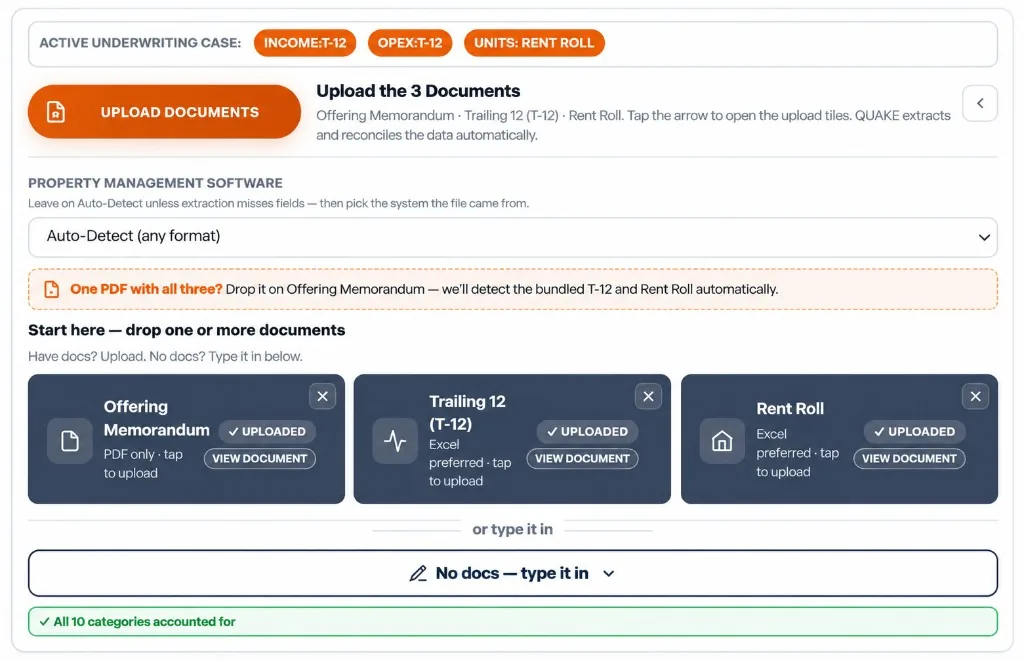
- Offering Memorandum. PDF only. QUAKE reads the seller’s story: property identity, asking price, unit count, year built, class, and the seller’s income and NOI figures.
- T-12. Excel is preferred. PDF, CSV, and a photo of the statement are also accepted. QUAKE reads trailing income, operating expenses, and NOI.
- Rent Roll. Excel is preferred. The same broader file types are accepted. QUAKE reads units, occupied and vacant counts, and in-place rent.
Leave Property Management Software on Auto-Detect. Change it only if a field comes back empty and you know the system that produced the file, such as Yardi, RealPage, AppFolio, or a generic Excel file.
A card turns green and shows Uploaded when the file is received. View Document opens the original. The remove control clears that slot.
If you do not have files yet, use No docs — type it in. A Manual column appears as you enter price, income, expenses, and units.
Review what QUAKE extracted
Open Deal Analysis Tools. Side-by-Side Comparison lines the documents up in columns. The Deal Index sits with that comparison and holds the working numbers for the rest of QUAKE.
Empty cells stay blank until a document supplies them. Where the documents disagree, the difference stays visible. QUAKE does not average the sources into one number.
If an expense category is missing, the missing-categories strip appears above the comparison. Fill or confirm those lines before you treat the expenses as complete. Read How QUAKE Reads Your Documents before you rely on a figure.
Run the analyses
Choose RUN ALL ANALYSES. QUAKE runs, in order:
- Deal Highlights
- Market Analysis
- Debt & Cash Flow
- Value Add
- Analyze the Deal
- Trailing-12 Analysis
- Rent Roll Analysis
Run All also opens Side-by-Side, Cap Rate Lab, and Pro Forma so you can review them. It does not create a report. You can open any one of those sections on its own if you only want that piece.
Review Cap Rate Lab and the Pro Forma
Cap Rate Lab is a slider. It shows defensible, stretched, and overpaying zones, and it can reverse-solve for a 15% IRR, an 8% cash-on-cash return, or a 1.25 debt-service coverage ratio.
Pro Forma projects years 1 through 10. Enter a purchase price. The other fields start as assumptions you can change: loan-to-value 70%, interest rate 6.5%, 30-year amortization, rent growth 3%, expense growth 2.5%, exit year 10, exit cap 6%, and selling costs 2%. An optional selling price overrides the exit cap. These financing inputs are separate from Debt & Cash Flow.
The detail of each tool is in Understanding QUAKE's Analysis.
Create a presentation
Open Create Presentation and choose one output:
- Buyer Report
- Full Deal Report
- Offering Memorandum
- Broker Flyer
- Excel Underwriting
Run the analysis sections you want in a Full Deal Report before you generate it. The Buyer Report is the short brief. The Full Deal Report is the long record of the sections you have actually run. See Creating Reports.
Save the deal, then reopen it
- Choose Save Deal. QUAKE keeps the property name, city, and state, the extracted figures, your assumptions, the analyses you have run, and the document names.
- Find the deal in the Deal Vault and open it. The workspace comes back so you can keep going.
- Use Save As when you want a second copy under a new name. The original deal stays as it was.
Without a sign-in, the deal stays on this device and the sync mark reads LOCAL. Signing in is how a deal can sync to your account. See Using the Deal Vault.